

Chapters
Browse all chapters
Getting started
Editing
Site & domains
Billing & account
- Plans and billing
- AI credits
- Team and sharing
- Account and security
- Notifications and emails
AI
FAQ
Help › Billing & account › Account and security
Account and security
Your account holds your profile, sign-in security, cards, invoices and AI credits, for every site you own. Open it from your initials at the top right: Account settings or Security settings.
| Tab | Holds |
|---|---|
| Profile | First and last name, email address, phone number |
| Security | Password, two-factor authentication, passkeys |
| Payment methods, Billing, Transactions | See Plans and billing |
| AI Credits, Credit History | See AI credits |
Profile and email
Edit your name or phone number and press Save changes.
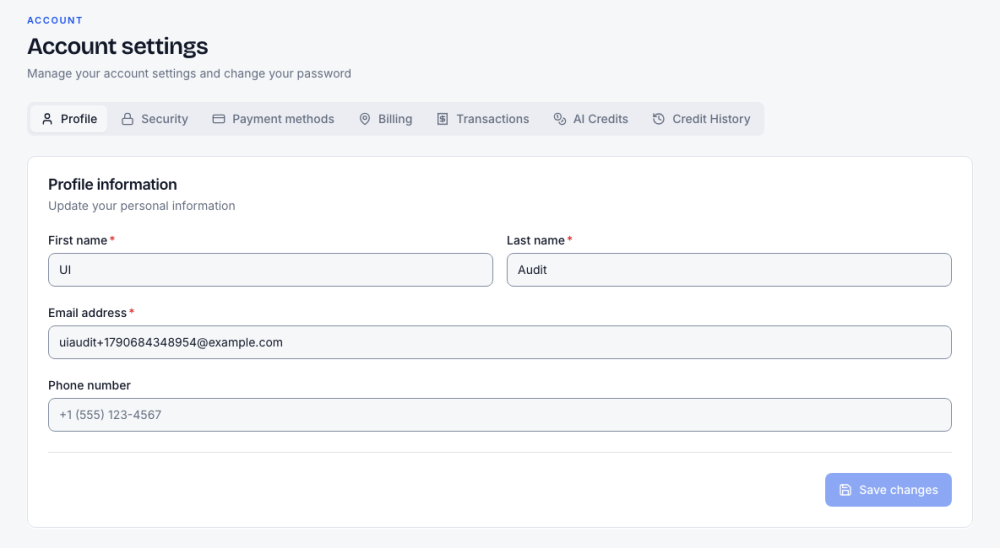
Changing the Email address asks you to confirm, and you then verify the new address from the email we send. Your sign-in switches to the new email.
Change your password
- Open Security.
- Type your Current password, then the New password twice. It needs at least 8 characters, with a lowercase letter, an uppercase letter and a number.
- Press Change password.
Changing the password does not sign out your other devices.
Two-factor authentication
Two-factor sign-in asks for a second proof after your password, so a stolen password alone is not enough. Turn on any combination of methods in Security.
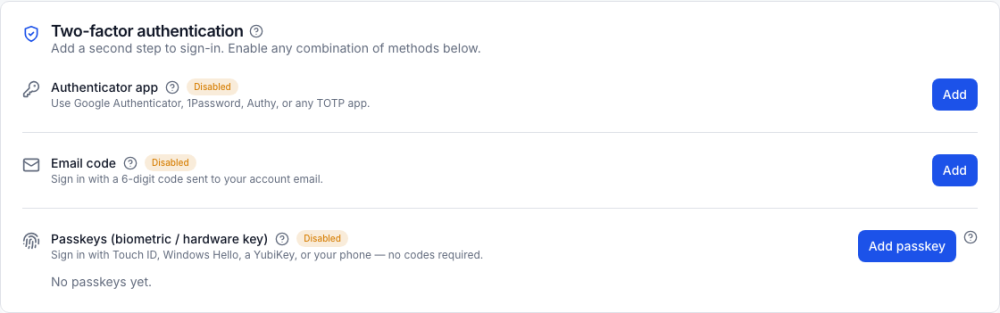
| Method | How to turn it on |
|---|---|
| Authenticator app | Press Add, scan the QR code with Google Authenticator, 1Password, Authy or similar (or type the secret shown), enter the 6-digit code, press Verify & enable |
| Email code | Press Add, then Send code, and enter the 6-digit code from your inbox |
| Passkeys | Press Add passkey and confirm with Touch ID, Windows Hello, a security key or your phone; give it a nickname. Add one on each device you use. |
When you turn on the authenticator app, Webmarlin shows 10 recovery codes once. Copy or Download .txt them, keep them away from your phone, and tick that you saved them. Each code works once if you lose your phone. Regenerate codes replaces them (the old ones stop working); disabling a method asks for your password.
Signing in
- Sign in with email and password, or with Google.
- With two-factor on, the next screen offers the methods you set up: Passkey, Authenticator, Email or Recovery.
- Forgot password? on the sign-in page emails a reset link. Follow it to choose a new password.
- A new account must confirm its email before it can use the console; Resend verification email sends the link again.
- Log out is in the menu under your initials.