

Chapters
Browse all chapters
Getting started
Editing
Site & domains
Billing & account
AI
FAQ
Help › Site & domains › SEO and search
SEO and search
Search engines read four things you control: each page's title and description, the site-wide defaults, structured data about your business, and a few files at the root of your site. A page's own values are set in Page settings → SEO (see Pages); everything else is here.
Site-wide SEO defaults
Settings → SEO holds the title, description and share image used by every page that has none of its own.
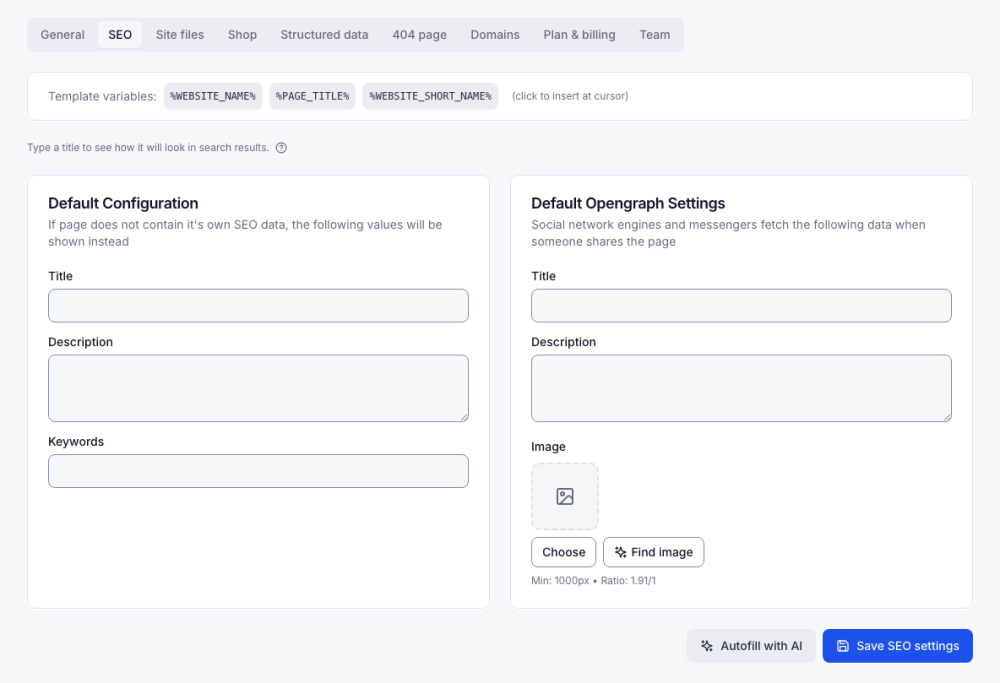
| Box | What it sets |
|---|---|
| Default Configuration | Title, Description and Keywords for search results |
| Default Opengraph Settings | Title, Description and Image shown when someone shares a link on social networks or in messengers. The image should be at least 1000 px wide, in a 1.91:1 ratio. |
Titles and descriptions can contain placeholders; click one in Template variables to insert it at the cursor.
| Placeholder | Replaced by |
|---|---|
| %PAGE_TITLE% | The title of the page being shown |
| Webmarlin Help | Your full website name from Settings → General |
| %WEBSITE_SHORT_NAME% | The short name, handy when the full one makes titles too long |
For example, %PAGE_TITLE% | %WEBSITE_SHORT_NAME% gives "Cake prices | Corner Bakery". Keep titles near 60 characters and descriptions near 155. Autofill with AI fills the fields from your site's content and spends credits; read the result, then press Save SEO settings.
Structured data
Settings → Structured data tells search engines who is behind the site, in the schema.org format Google uses for rich results.
- Pick the Schema type: Organization, Local Business (a place customers visit) or Person.
- Fill the details: name, alternate name, web address, logo, social media links and contact points. Local Business adds address and opening details.
- Press Save structured data.
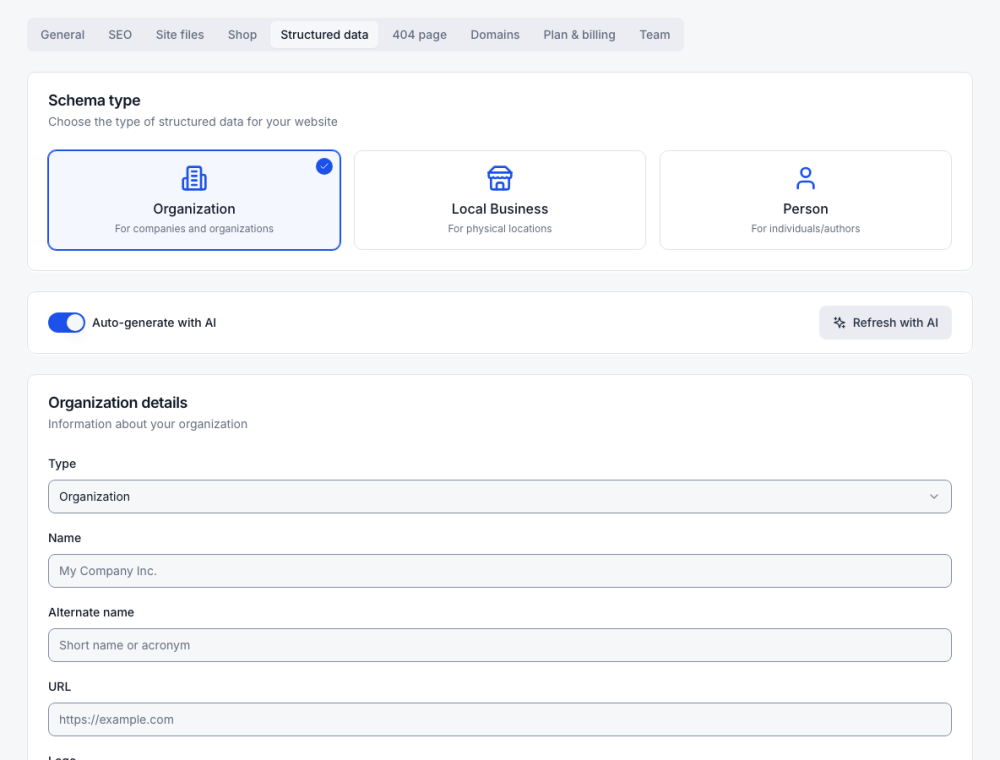
With Auto-generate with AI on, Webmarlin refreshes these details from your site before it publishes. Refresh with AI does it now.
Site files
Settings → Site files writes the small files that crawlers, feed readers and ad networks look for. Press Save site files after a change.
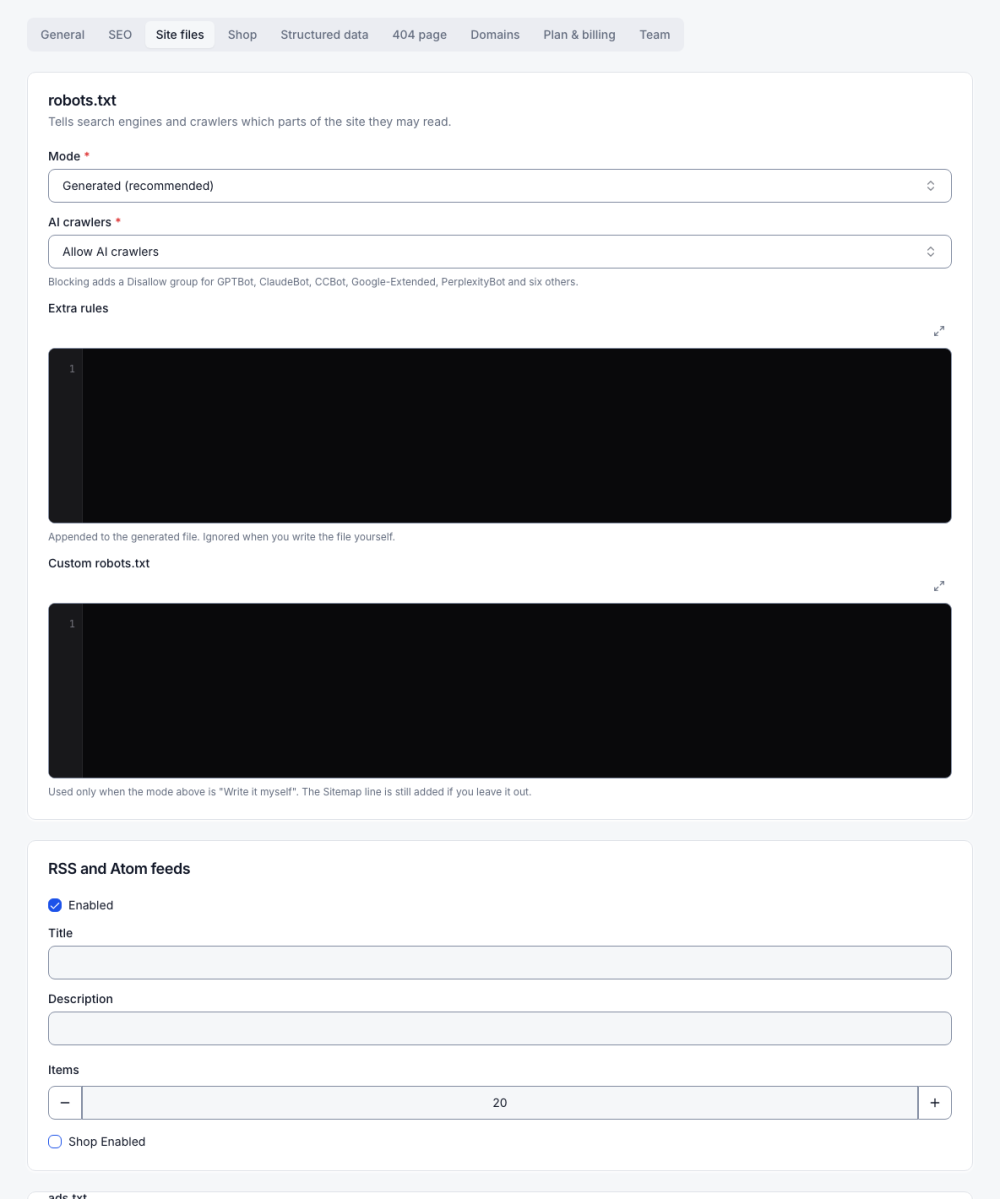
| File | What you set |
|---|---|
| robots.txt | Mode: Generated (recommended) or write it yourself. AI crawlers: allow, or block GPTBot, ClaudeBot, CCBot, Google-Extended, PerplexityBot and six others. Extra rules are added to the generated file. The Sitemap line is always included. |
| RSS and Atom feeds | On or off, feed title and description, number of items, and whether shop products are included |
| ads.txt and app-ads.txt | One ad-seller record per line, for example example.com, 12345, DIRECT |
| security.txt | Served at /.well-known/security.txt; must contain a Contact: line |
| llms.txt | Served exactly as written at /llms.txt, for AI assistants that read it |
| Web app manifest | Name, short name, theme and background colours, and display mode (Browser, Minimal UI or Standalone) for "Add to home screen" |
The 404 page
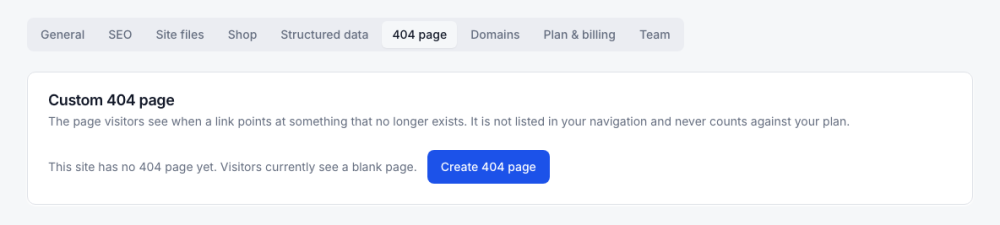
The 404 page is what visitors see when a link points at a page that does not exist. It is not in your menu and does not count against the plan's pages.
- Open Settings → 404 page.
- If the site has none yet, press Create 404 page.
- Press Edit 404 page to design it in the editor, then publish. Preview shows it.
When you rename a published page, Webmarlin redirects the old address for you (see Change a URL in Pages), so renames do not create 404s.