

Chapters
Browse all chapters
Getting started
Editing
Site & domains
Billing & account
AI
FAQ
Help › Site & domains › Domains
Domains
A domain is your site's web address. Every site has a free one; you can also connect a domain you already own, or buy one here. Domain work happens in two places:
| Place | For |
|---|---|
| Settings → Domains (per website) | The free address, connecting domains to this site, the CDN address |
| Domains in the sidebar (your account) | Buying, renewing, DNS records, nameservers and WHOIS privacy for domains you registered with Webmarlin |
Your web address
Every site gets a free address on the Webmarlin network, for example corner-bakery.webmarlin.com. Change it in Settings → Domains → Free address.
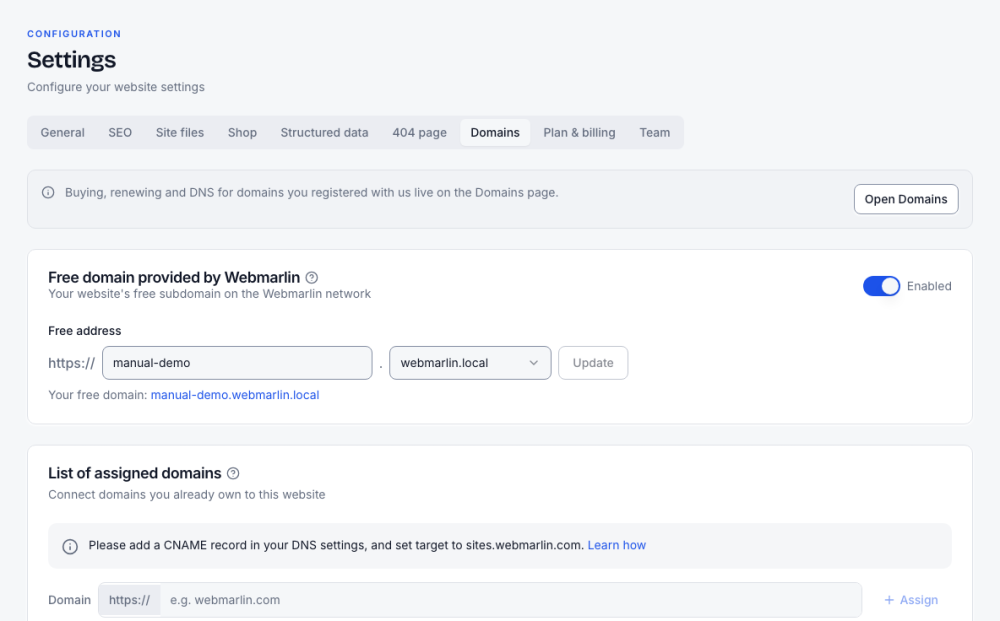
To use a domain you already own:
- At your domain provider, add a CNAME record pointing to
sites.webmarlin.com. - In Settings → Domains, type the domain under List of assigned domains and press Assign.
- The secure certificate (https) is issued automatically once the record points to Webmarlin. DNS changes can take up to a few hours.
To buy a new domain, use Domains in the sidebar (or Register a domain on the same tab): search, register, then manage renewals, DNS records and nameservers there. The number of custom domains depends on the plan.
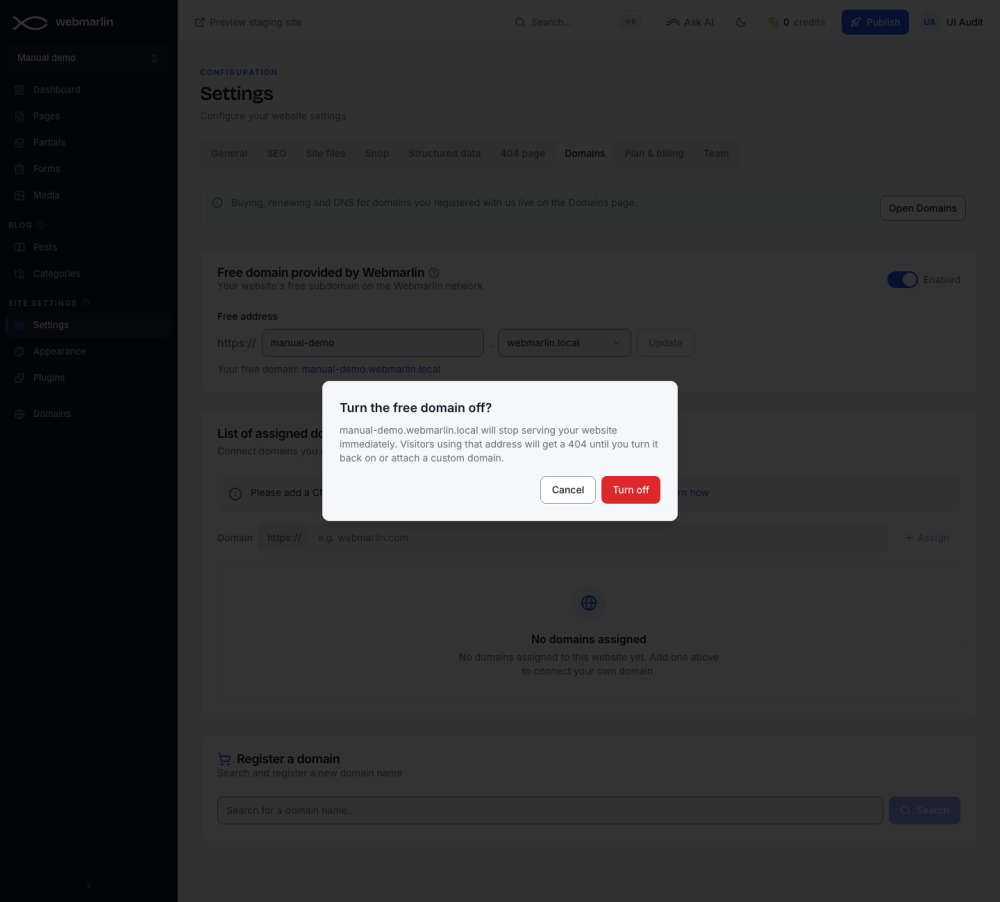
Turn the free address off or on
The Enabled switch next to Free domain provided by Webmarlin turns the free address off. It asks first: visitors who use that address get a "not found" page until you turn it back on or attach your own domain. Keep it on while a new domain's DNS settles; the free address keeps working alongside it.
Verification and https
After Assign, the domain shows Pending until its CNAME record points at sites.webmarlin.com.
- Add the record at your domain provider.
- Wait. DNS changes take from a few minutes to a day to spread.
- Press Verify next to the domain. It turns Verified once the record is found.
The https certificate is issued automatically once the domain is verified and renews on its own; there is nothing to buy or install. The bin icon removes a domain from the site; a verified domain stops reaching the site straight away, and adding it back needs verifying again. How many domains a site can have depends on its plan.
Custom CDN address
On plans that include it, Settings → Domains shows CDN configuration. Your images and files normally load from cdn.webmarlin.com; here you can serve them from your own address, such as cdn.example.com. That address must support https and point to cdn.webmarlin.com in DNS. A wrong address breaks every image and download until you correct it, so most sites leave this empty.
Buy a domain
You can search and buy a domain in Domains in the sidebar, or in Register a domain at the bottom of Settings → Domains.
- Type a name or keyword and press Search. Each result says Available, Taken or Not available. More ideas suggests other names and endings.
- Available names show their first-year price and what they renew at each year; Promo and Premium badges mark special prices. Press Select on the one you want.
- Fill the Registrant contact details the registrar needs for WHOIS: name, phone, address, city, state, zip code and country. The email is your account email. Some endings ask for extra registry details.
- Choose a saved card, or Add new card.
- Press Purchase domain. Registration usually takes a few minutes, and you get a confirmation email.
If the payment cannot finish in the dialog, it shows Pay the invoice to finish with Open invoice; registration starts once it is paid. Prices always come from the registrar at the moment you search. (Screenshots not available: the local test registrar is offline, and the manual does not buy domains.)
The Domains page
Domains in the sidebar lists every domain registered on your account.
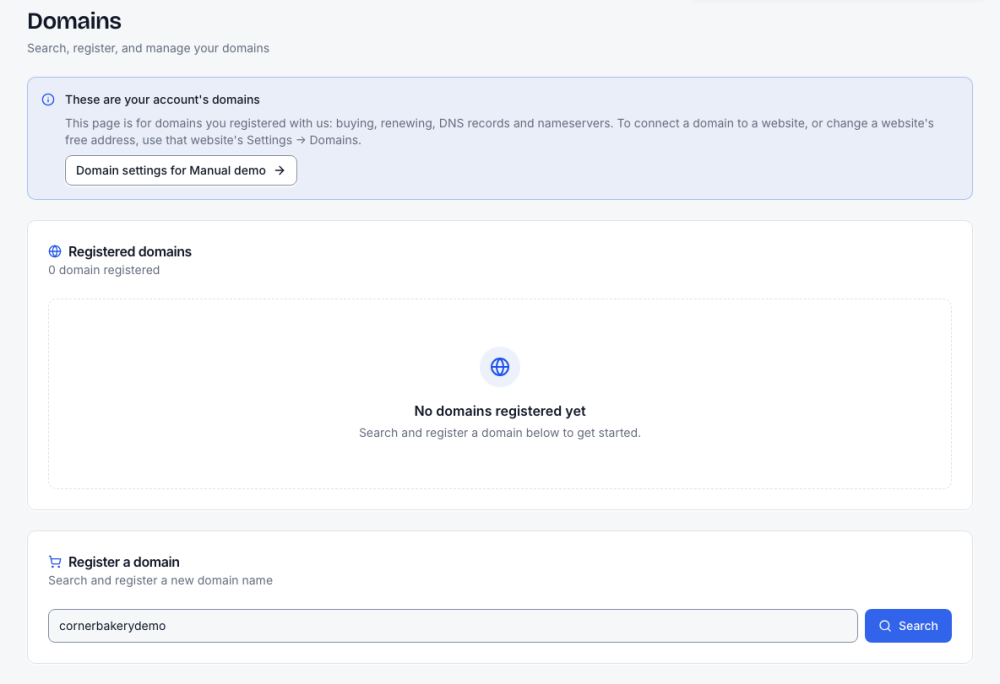
| Column | Meaning |
|---|---|
| Status | Active, Pending, Awaiting payment, Expired or Failed. Needs attention means a payment and registration do not match yet; our team is on it. |
| Website | The site the domain points at, or Link to website |
| Registered, Expires | Dates at the registrar |
| Auto-Renew | Yes or No |
| Manage | Opens the domain's own page |
Link to website lists only sites whose plan allows custom domains. Unlinking asks first: the domain stops pointing at that site.
Manage a domain
Manage opens three cards (screenshot not available: needs a registered domain).
Domain details shows the status and dates, and has these controls:
- WHOIS privacy hides the owner's details from public WHOIS. Some registries (a few country endings) do not allow it; the page says so.
- Auto-Renew renews the domain each year on its own.
- Renew now renews for one more year straight away. It shows the price and charges your default card when you press Renew for …. If the price changed since it was shown, nothing is charged until you confirm the new one.
Nameserver management decides who runs the domain's DNS:
| Option | What it means |
|---|---|
| Webmarlin managed (default) | DNS runs on Webmarlin's Cloudflare, and you edit records in the zone editor below |
| Custom nameservers | You enter at least two nameservers and manage DNS elsewhere; the zone editor is switched off |
Switching either way asks first. Hand DNS to Webmarlin only if nothing else relies on the old DNS, such as an existing email service, unless you copy those records over.
DNS records
The DNS zone editor lists the domain's records. Changes usually reach everyone within a few minutes.
- Press Add record.
- Choose the Type: A, AAAA, CNAME, MX, TXT, NS or SRV.
- Enter the Name (
@is the domain itself,wwwa subdomain) and the Value, for example an IP address for A. - Set the TTL in seconds (Auto is fine), and a Priority for MX and SRV.
- For A, AAAA and CNAME, Proxied routes traffic through Cloudflare's CDN and protection; DNS only does not.
- Press Create.
Each row has edit and delete buttons, and the proxy badge switches on click. Sync DNS reloads the records from Cloudflare.
| To | Add |
|---|---|
| Receive email (Google Workspace, Microsoft 365) | The MX records your email provider gives you |
| Prove you own the domain | The TXT record the service asks for |
| Point a subdomain at another service | A CNAME to the address the service gives you |
Renewals
Domains are registered for a year at a time. Webmarlin emails reminders 30 and 14 days before expiry when auto-renew is on, and 30, 14, 7 and 1 days before when it is off.
- Auto-renew on: about 7 days before expiry your saved card is charged and the domain renews; you get a Domain renewed email. If the charge fails, you get the invoice by email and it is retried daily until 2 days before expiry.
- Auto-renew off: press Renew now before the expiry date, or the domain lapses.
To stop renewing a domain you no longer want, turn Auto-Renew off.