

Chapters
Browse all chapters
Getting started
Editing
- Pages
- The page editor
- Site header, footer and partials
- Design and appearance
- Media library
- Blog
Site & domains
Billing & account
AI
FAQ
Site header, footer and partials
The header, footer, pre-header and any shared block are edited right on the page you are looking at: click one in the editor and it opens in place. Because they are shared, a change there shows on every page that uses them.
Edit the footer (or pre-header, or a partial) in place
- Open any page in the editor.
- Click the footer on the canvas.
- The rest of the page dims and a banner reads Editing Footer — changes apply to every page that uses it (13 pages). The outline now lists the footer's own sections.
- Edit it exactly like a page: type in place, add or move sections, change styles.
- Press Done to return to the page.
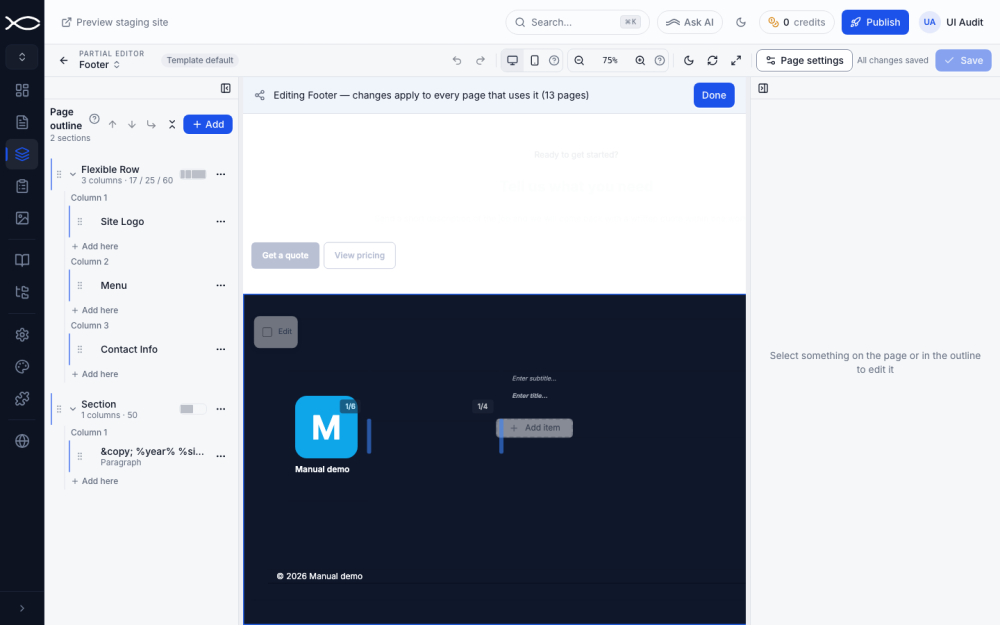
If you leave with unsaved changes, Webmarlin asks Save and exit or Discard and exit. A shared block that is write-protected shows This shared section is locked. Unlock it to edit.
If the page hides the pre-header or footer, turn it on in Page settings → General first; the link there says Turn it on here to edit it on the page.
Edit the header
The header is set up with settings rather than sections. Click it on the canvas and the Header panel opens on the right, while the page dims.
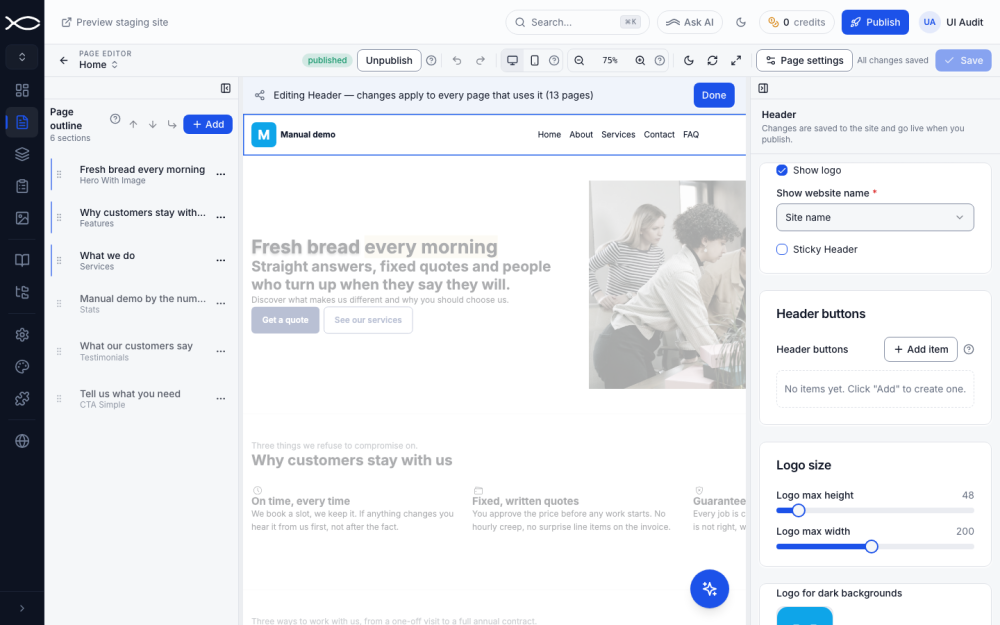
| Setting | What it does |
|---|---|
| Show logo | Shows or hides the logo |
| Show website name | Shows the site name next to the logo, or not |
| Sticky Header | Keeps the header at the top while visitors scroll |
| Header buttons | Adds buttons on the right, such as "Order a cake" |
| Logo size | Maximum height and width, in pixels |
| Logo for dark backgrounds | A second logo used on dark sections and in dark mode |
| Edit menu | Opens Pages, where the Main tab is the menu |
Press Save in the panel. As the panel says, changes are saved to the site and go live when you publish.
The header builder (Canvas and Nova templates)
On the Canvas and Nova templates the header can be rebuilt from slots: an optional top row, a main bar with left, centre and right slots, and an optional bottom row. Logo and menu can move between slots; the other slots take text, buttons, phone, social icons, search or cart.
| Preset | Layout |
|---|---|
| Template default | The template's own header (the default; nothing changes) |
| Classic | Logo left; menu and buttons right |
| Centered | Logo in the middle; social left, buttons right, menu below |
| Split | Menu split either side of a centred logo |
| Stacked | Phone and social on top; logo and buttons; menu below |
| Minimal | Logo left; buttons and a hamburger menu right |
| Transparent | Classic, laid over the hero until visitors scroll |
You can also set bar height (regular, compact, tall), padding, background (surface, primary, transparent), a border or shadow, the menu link style (plain, underline, pill) and text size. On phones the header shows the logo and a hamburger; each item can stay in the bar, move into the drawer, or hide.
Today you choose a preset by asking webmarlin.ai or a connected AI assistant, for example "Use the split header with the phone number in the top row." (A console panel for the builder is not in this version; screenshot not available.)
Partials
A partial is a block of sections you reuse on many pages, such as an opening-hours strip or a newsletter sign-up. The Footer and Pre Header are partials too.
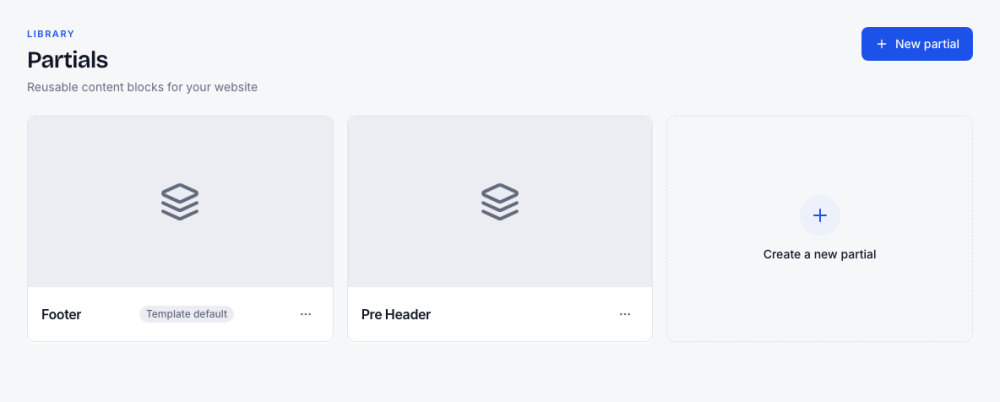
- Open Partials and press New partial. Name it; only you see the name.
- Press Edit and build it like a page.
- On any page, add it from Add section → Partials.
- Edit it later from Partials, or by clicking it on any page that uses it.
Template default on a card means the block still has the template's starter content. Before deleting a partial, Webmarlin lists the pages that use it; deleting removes it from all of them. Duplicate makes a copy you can change separately.