

Chapters
Browse all chapters
Getting started
Editing
Site & domains
Billing & account
AI
FAQ
Help › Site & domains › Site settings
Site settings
Settings in the sidebar holds everything about one website. The owner sees nine tabs; a collaborator sees only the tabs their permissions allow.
General
The General tab is the site's identity: who it is for, how it sounds, and the name, logos and contact details that fill your header, footer and contact sections. Press Save settings at the bottom after a change.
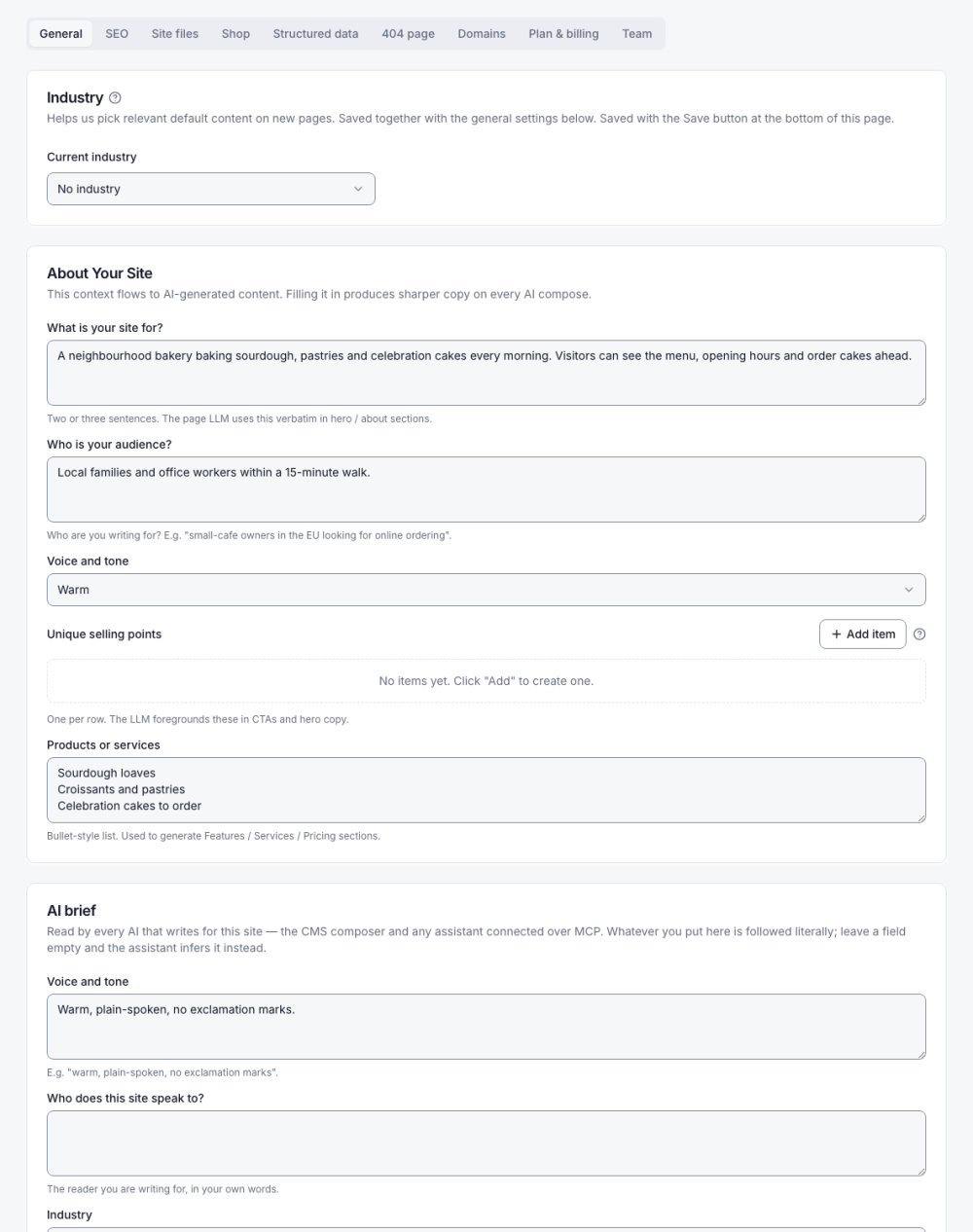
| Group | Fields |
|---|---|
| Industry | The kind of business; new pages start from matching text and images |
| About Your Site | What the site is for, audience, voice and tone, unique selling points, products or services. Feeds every AI compose. |
| AI brief | Voice and tone, who the site speaks to, industry, writing language, Always and Never lists. Every AI that writes for the site follows it literally, including connected assistants. |
| Website | Website name, short name, default language |
| Favicon and logos | Favicon, Logo, Logo for dark backgrounds, logo max height and width, with an optional image style |
| Contact Details | Telephone numbers, email addresses, postal address |
| Social Network Links | One row per profile |
A new site gets a placeholder favicon and logo made from its name. Upload your own with Choose or Replace. At the bottom, Danger zone → Archive website takes the site offline (see below).
All settings tabs
| Tab | Holds |
|---|---|
| General | Industry, About Your Site, AI brief, name, language, favicon, logos, contact details, social links |
| SEO | Site-wide title and description defaults for every page |
| Site files | robots.txt, RSS and Atom feeds, ads.txt, security.txt, llms.txt and the web app manifest |
| Shop | The online shop switch |
| Structured data | Schema.org details about the business |
| 404 page | What visitors see for an address that does not exist |
| Domains | Free address, your own domains, CDN (see Domains) |
| Plan & billing (owner only) | Usage, plan changes, cancelling (see Plans and billing) |
| Team (owner only) | Collaborators and their permissions (see Team and sharing) |
Archive and restore a website
Archiving takes a site offline without deleting anything. Use it for a site you no longer need; you can bring it back at any time.
- On All websites, open the site card's ⋯ menu and choose Archive… (or Settings → General → Danger zone → Archive website).
- Read the dialog, type the website's name to confirm, and press Archive website.
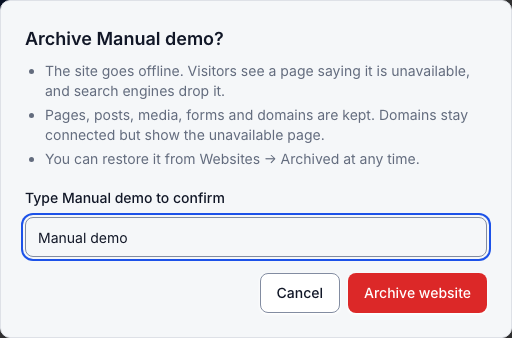
- Visitors see This website is unavailable; search engines drop the site.
- Pages, posts, media, forms and domains are kept. Domains stay connected but show the unavailable page.
- To bring it back, open All websites → Archived and press Restore. It returns to exactly the state it had.
- A site with a running paid plan cannot be archived. Cancel the plan first; if it is cancelled but paid until a date, you can archive after that date.