

Chapters
Browse all chapters
Getting started
Editing
Site & domains
Billing & account
AI
FAQ
Help › Billing & account › Team and sharing
Team and sharing
You can let other people work on one of your sites without sharing your password. Each collaborator has their own Webmarlin account and sees only the sites you shared, with only the permissions you gave.
Collaborators and permissions
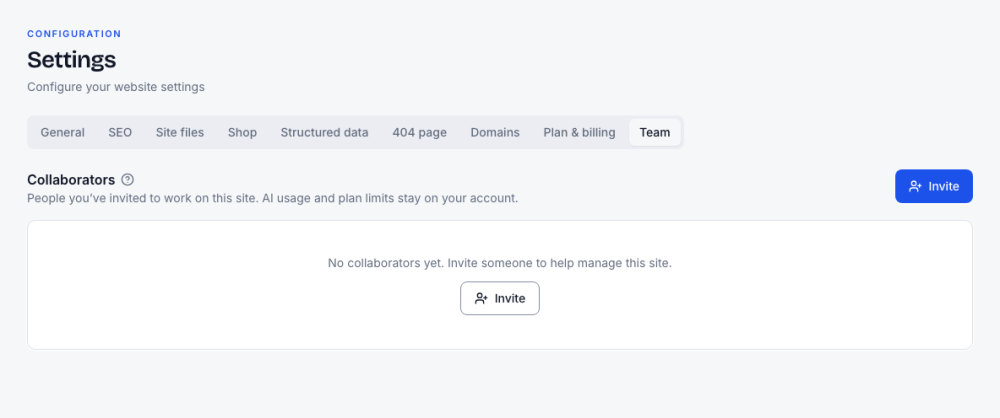
Settings → Team invites people to work on one site. AI usage and plan limits stay on your account.
| Preset | What they can do |
|---|---|
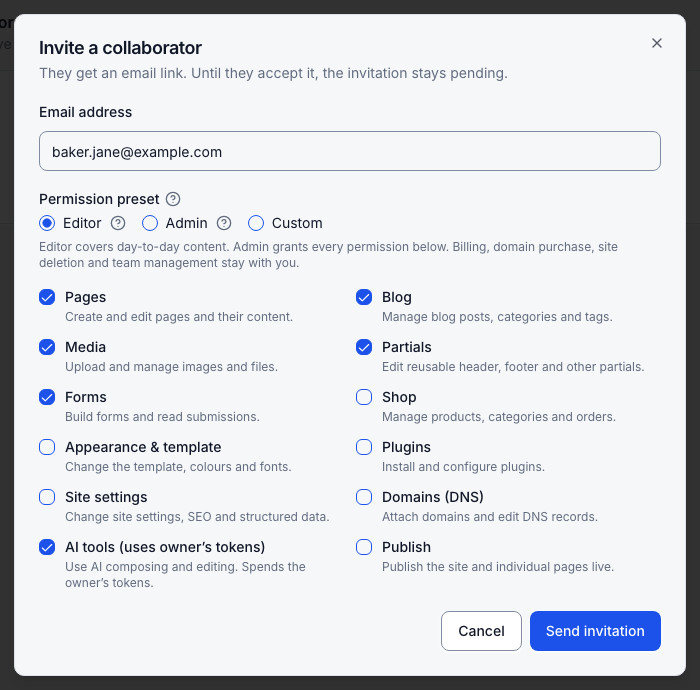
| Editor | Day-to-day content: pages, partials, blog, media, forms and AI tools |
| Admin | Every permission below |
| Custom | Pick from: Pages, Partials, Blog, Media, Forms, Shop, Appearance & template, Plugins, Site settings, Domains (DNS), Publish, AI tools |
Billing, buying domains, archiving the site and managing the team always stay with the owner. The AI tools permission spends the owner's credits.
Invite someone
- Open Settings → Team and press Invite.
- Type their Email address.
- Choose a Permission preset: Editor, Admin, or tick exactly the permissions you want (the preset then reads Custom).
- Press Send invitation.
They get an email with an Accept invitation link; it names you, the site and what they will be able to manage, and says when the link expires. The row shows Pending with its expiry date until they accept.
Manage collaborators
The Team tab lists each person's email, name, status and permissions. The row's menu has:
| Action | What happens |
|---|---|
| Edit permissions | Change the preset or ticks; it applies the next time they load the console |
| Resend invite | Sends the email again (pending invitations) |
| Remove | Access ends immediately. Their work stays on the site. You can invite them again later. |
Accept an invitation
- Open the link in the invitation email.
- Signed out? Choose Log in, or Create account with the invited email address.
- Press Accept invitation. The site appears in your website switcher.
If you are signed in with a different email, the page says so; sign out and use the invited account. An expired or used link asks you to get a new invitation from the owner. Invitations also appear under the envelope icon in the top bar, and on your dashboard if you have no site of your own, each with Accept and Decline.