

Chapters
Browse all chapters
Getting started
Editing
Site & domains
- Site settings
- Domains
- SEO and search
- Forms and submissions
- Shop
- Plugins and custom code
Billing & account
AI
FAQ
Help › Site & domains › Plugins and custom code
Plugins and custom code
Plugins add outside services to your site without touching code: analytics (Google Analytics, Google Tag Manager, Facebook Pixel, HubSpot and others), advertising, a cookie consent banner, and Custom Code for anything else.
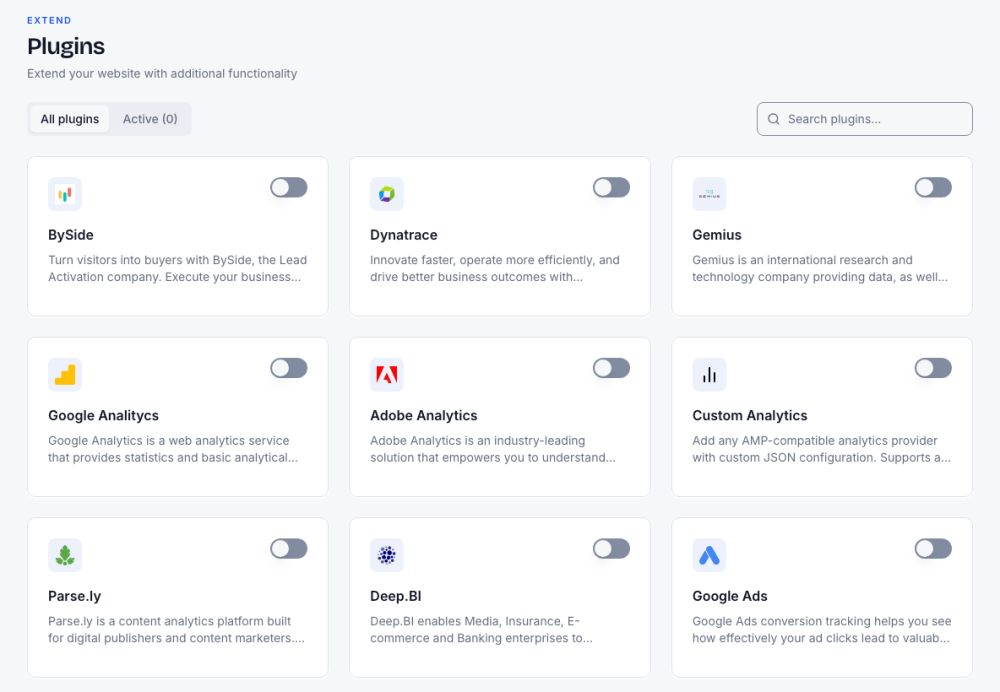
Switch a plugin on
- Open Plugins in the sidebar. Search plugins finds one by name; Active shows only those switched on.
- Flip the plugin's switch. Its settings open.
- Fill what the service gave you, such as a measurement or tracking ID, and press Save settings.
- Publish the site so the plugin reaches your live pages.
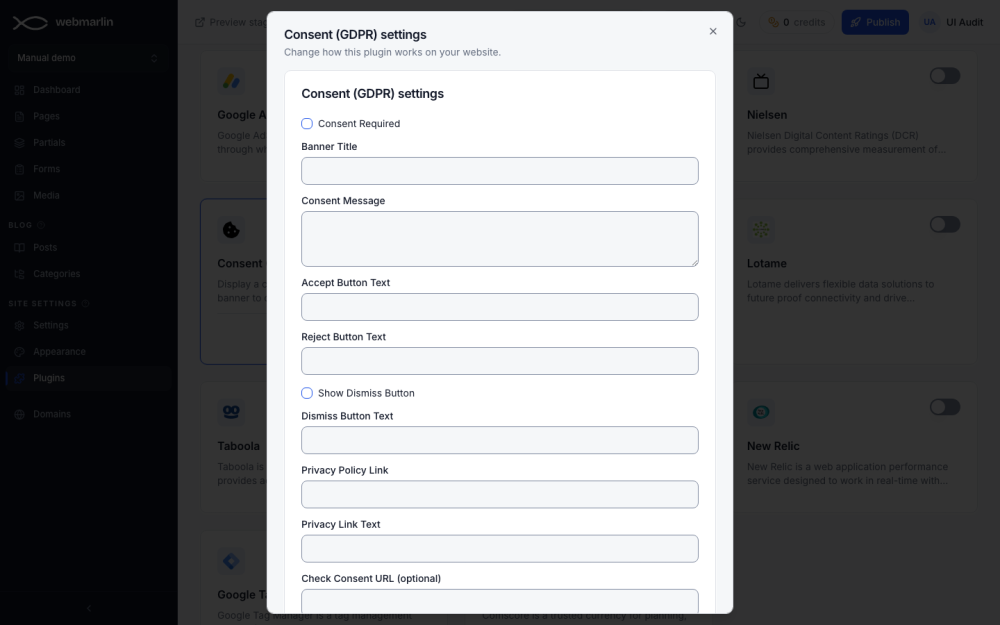
Configure on an active plugin reopens its settings. Flipping the switch off asks first; what the plugin added is removed at the next publish, and its settings are kept in case you switch it back on.
Custom code
The Custom Code plugin pastes your own HTML, meta tags or third-party snippets into every page: in the page head, at the top of the body, or just before the closing body tag.
- It needs a plan that includes custom code; otherwise the switch is locked with Available on paid plans.
- Each block holds up to 64 KB.
- The code goes onto your pages exactly as written, with no checking. A broken snippet can break the site or leak visitor data, so paste only code you trust.
- If your plan later drops custom code, the snippet stays saved but is no longer added to the published site.
Use a dedicated plugin where one exists, and set titles and descriptions in SEO settings rather than with scripts.